Key takeaways
- Use semantic elements and dependable keyboard controls.
- Check actual contrast in light and dark modes.
- Combine automated checks with human interaction testing.
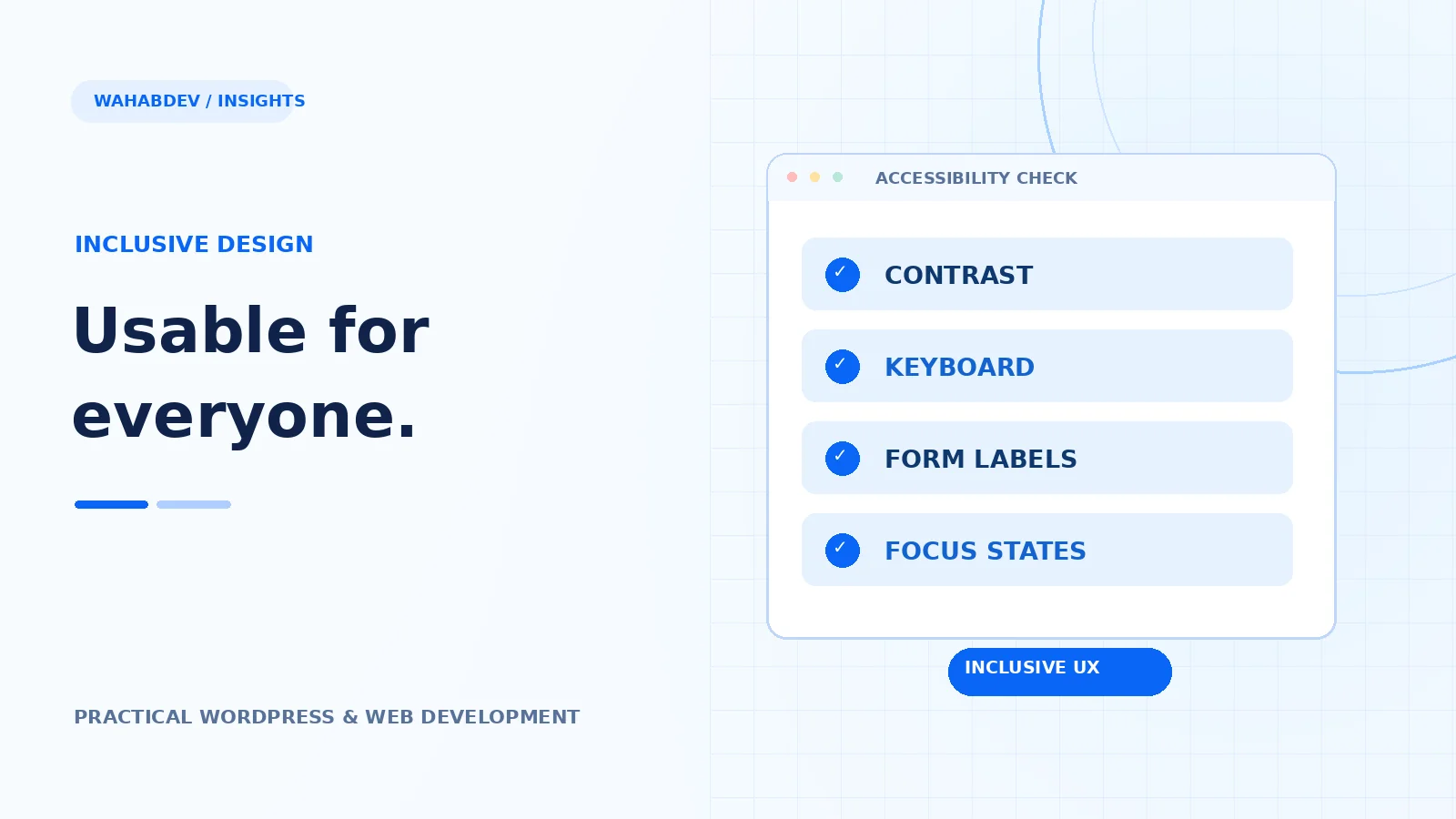
Accessibility work starts with everyday decisions about structure, contrast, keyboard controls and the clarity of your content.
Accessibility starts in the markup
Correct headings, links, buttons and landmarks make a site easier to navigate for everyone, including screen-reader users. Use a real button to open a menu, not a clickable div. Keep headings in a logical order and make link text explain the destination. Styling can change how a component looks without replacing the semantics that browsers already know how to handle.
- Use one clear h1 and meaningful section headings.
- Prefer native form controls and buttons.
- Provide a working skip-to-content link.
Contrast must work in every theme mode
Check text against its actual background, including over photographs, gradients and translucent glass panels. A color combination that looks comfortable on a large monitor can become difficult to read on a phone outdoors. Also inspect disabled, focus, validation and dark-mode states. Do not communicate an error only through a red border or a success only through green text.
- Check normal text and interactive controls in both modes.
- Make links recognizable beyond color alone.
- Review transparency over variable backgrounds.
Keyboard behavior deserves its own test
Put the mouse aside and travel through the page using Tab, Shift+Tab, Enter and Escape. Can you see where focus is? Can you open and close mobile navigation? Does a modal return focus to the triggering control? If a carousel moves automatically, can users pause it? These issues are much easier to fix when interaction behavior is designed early.
- Always provide visible focus indicators.
- Avoid keyboard traps in dialogs and dropdowns.
- Respect reduced-motion preferences.
Images and forms need useful context
Write alt text describing what an image communicates rather than repeating the article title or saying ‘image’. Decorative graphics can use empty alt text. Connect each form field to a label and explain errors in plain language. Do not rely on placeholder text as the only label. Make sure validation feedback is announced and that the user can correct it without losing their work.
Create a short QA routine you will actually follow
Automated checks catch some problems; they cannot judge whether instructions are understandable or a form flow makes sense. Combine scanner results with keyboard testing and a screen-reader spot check. Review representative templates after major theme updates, especially reusable headers and forms. The goal is continuous improvement, not claiming that a tool made everything compliant.
- Test templates with realistic long content.
- Check touch targets at narrow widths.
- Include accessibility issues in regular release QA.
Have something like this in mind?
Good development starts with understanding the site, the people using it and the decisions that matter after launch.
Review website accessibility