Key takeaways
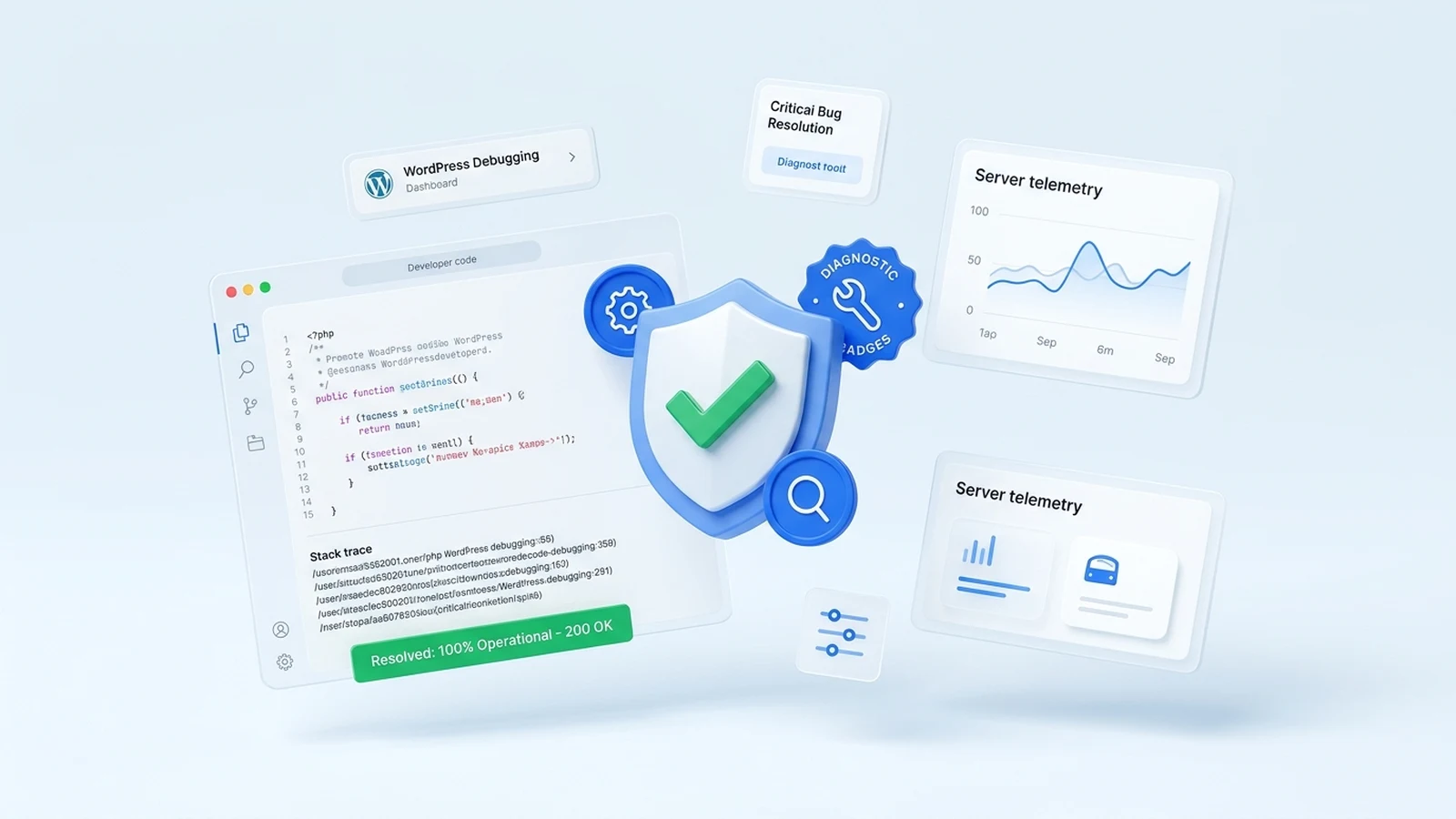
- Enable WP_DEBUG_LOG in wp-config.php to uncover the exact file and line number causing the crash.
- Increase PHP memory limits to 256M/512M to eliminate memory exhaustion errors.
- Isolate problematic plugins safely via FTP renaming without risking database corruption.
A calm, structured engineering approach to diagnosing and resolving critical WordPress crashes, 500 internal server errors, and broken admin dashboards.
Understanding the WordPress 'Critical Error on This Website' Crash
Few experiences are as alarming for a website owner as visiting their site and encountering the dreaded message: 'There has been a critical error on this website. Please check your site admin email inbox for instructions.' This message is WordPress's user-friendly disguise for an unhandled PHP fatal error or memory exhaustion. In 95% of cases, the crash is caused by an incompatible plugin update, a PHP version deprecation (such as upgrading to PHP 8.2), or exhausted server memory allocation.
- PHP Fatal Error: An unhandled exception or calling an undefined function immediately halts PHP script execution.
- Memory Limit Exhaustion: A complex plugin or background backup script exceeds the server's allowed RAM quota.
- Syntax Errors from File Edits: A misplaced bracket or missing semicolon added during manual functions.php edits.
- Database Connection Failures: Corrupted database tables or exhausted MySQL connection pools returning 500 errors.
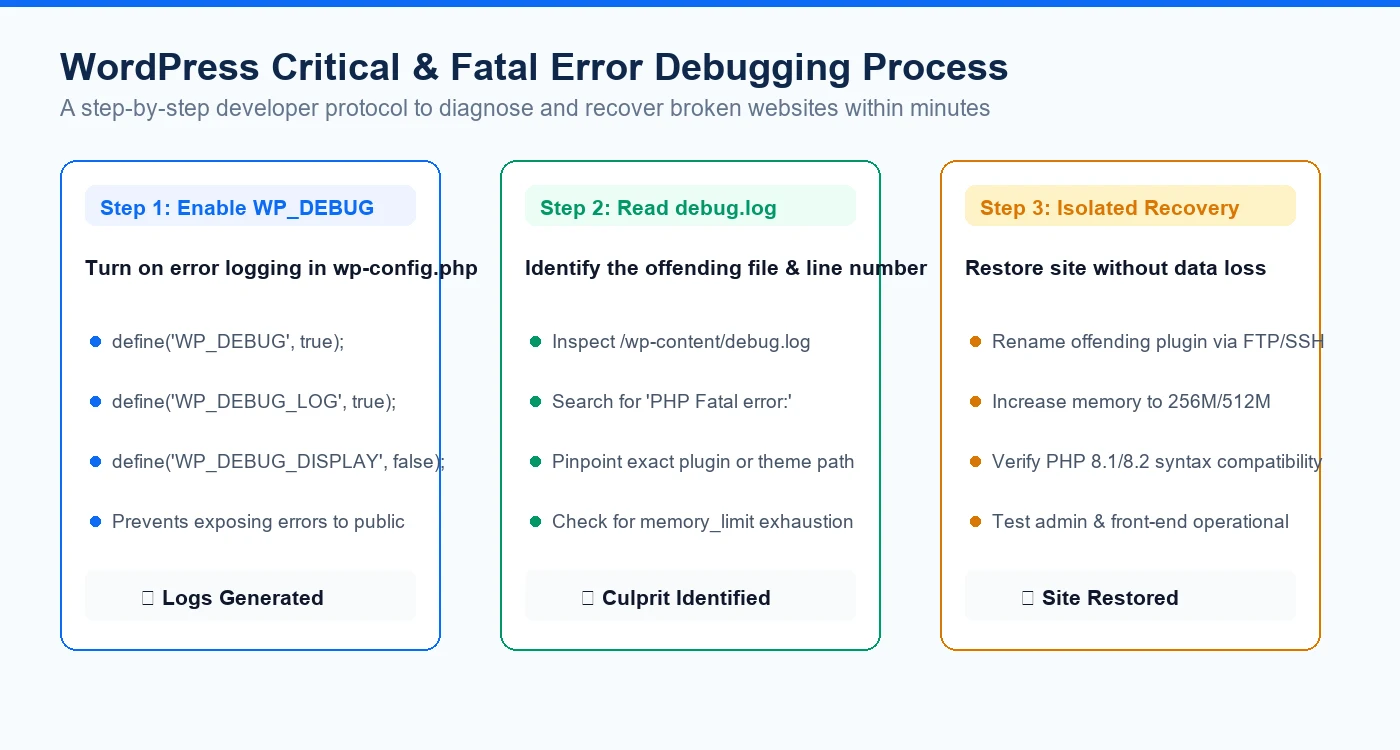
Step 1: Enable WP_DEBUG Logging in wp-config.php
When a critical crash locks you out of the WordPress administrative dashboard, your first tool is the server's wp-config.php file. Connect via FTP, SFTP, or your hosting File Manager, open wp-config.php in the website root, and configure debugging to write errors to an isolated private log file without displaying raw code to public visitors.
- Add: define('WP_DEBUG', true); to activate the internal WordPress debugging system.
- Add: define('WP_DEBUG_LOG', true); to automatically write errors to /wp-content/debug.log.
- Add: define('WP_DEBUG_DISPLAY', false); to ensure technical traces remain hidden from front-end users.
- Save the file and refresh your broken page once to trigger the error and populate the debug log.
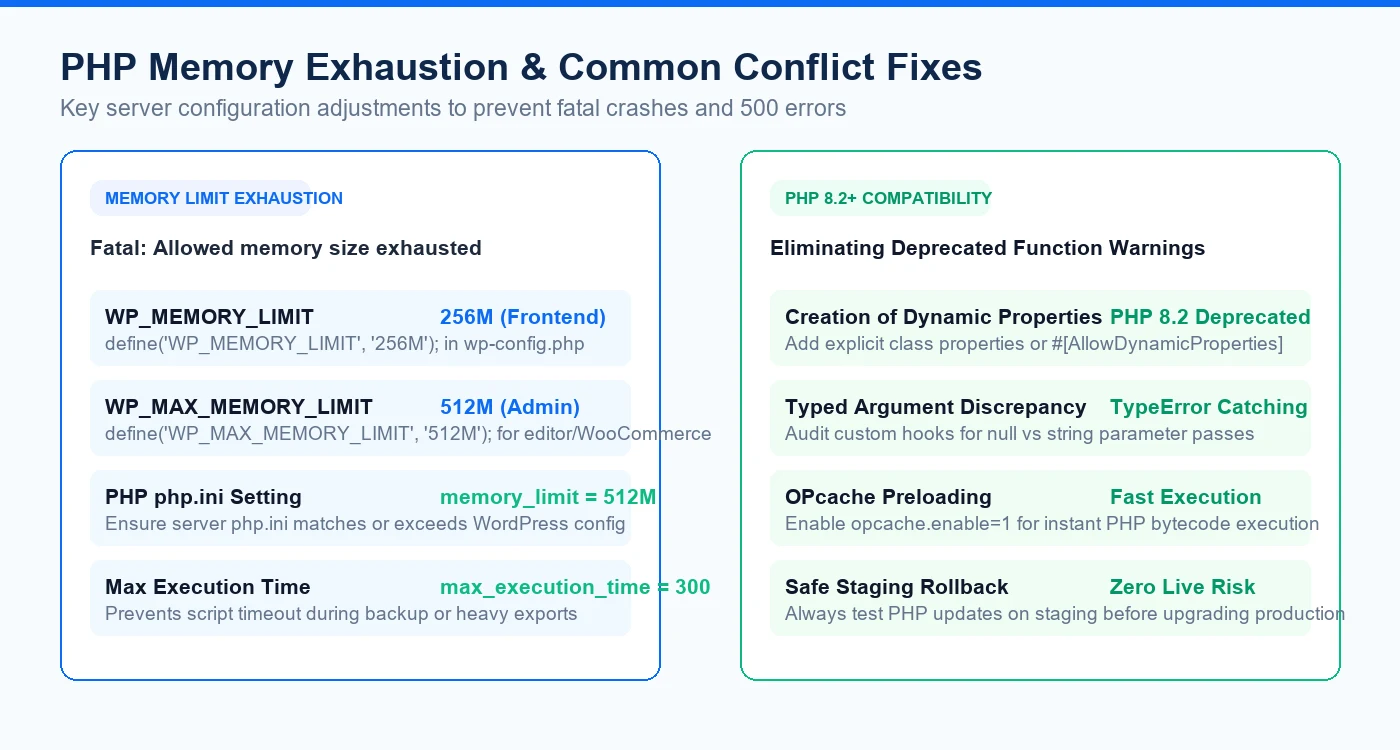
Step 2: Resolving Memory Exhaustion & Plugin Conflicts
Open /wp-content/debug.log and scroll to the bottom. If the log displays 'Fatal error: Allowed memory size of X bytes exhausted', your website simply ran out of assigned RAM. If the log points to a specific plugin file (e.g. /wp-content/plugins/broken-plugin/...), you have identified the culprit immediately.
- Increase Memory Limit: In wp-config.php, add define('WP_MEMORY_LIMIT', '256M'); and define('WP_MAX_MEMORY_LIMIT', '512M');.
- Isolate the Offending Plugin: Rename the specific plugin folder via FTP (e.g., rename /plugins/broken-plugin/ to /plugins/broken-plugin-disabled/) to immediately restore admin access.
- Check PHP 8.2 Compatibility: Verify that your active plugins and parent theme support PHP 8.1 or 8.2; roll back PHP version temporarily if deprecated functions cause crashes.
- Clear Cache & Re-test: Clear server cache (Redis/OPcache/LiteSpeed) before re-activating plugins one by one.
Safe Recovery Protocol: Prevent Future Crashes
Once operational status is restored, implement preventative safeguards. Never update major plugins directly on a production website without an automated daily backup. Maintain a staging clone where plugin updates, theme modifications, and PHP upgrades are tested in advance.
- Configure automated off-site backups (daily database and weekly full filesystem).
- Update one plugin at a time rather than clicking 'Update All' simultaneously.
- Audit deprecated custom snippets in functions.php and replace outdated hooks with modern equivalents.
Have something like this in mind?
Good development starts with understanding the site, the people using it and the decisions that matter after launch.
Get emergency WordPress bug fixing