Key takeaways
- Disable AJAX cart fragments on non-store pages to instantly eliminate 1-2s latency.
- Implement Redis Object Caching and WooCommerce HPOS for sub-second database queries.
- Streamline the checkout layout and offer Express Pay (Apple Pay / Google Pay) to maximize conversions.
A practical developer guide to diagnosing slow WooCommerce stores, eliminating cart fragment latency, and achieving sub-second checkout performance.
Why WooCommerce Stores Slow Down Over Time
WooCommerce is inherently dynamic: unlike static blogs or brochure sites, every cart update, customer session, tax calculation, and inventory lookup bypasses standard page caching. As stores grow past 500 orders or add multiple marketing plugins, database queries spike, causing TTFB (Time to First Byte) to jump from 300ms to over 2.5 seconds. The secret to WooCommerce speed is not adding more caching plugins—it is reducing unnecessary database queries and script executions before they touch PHP.
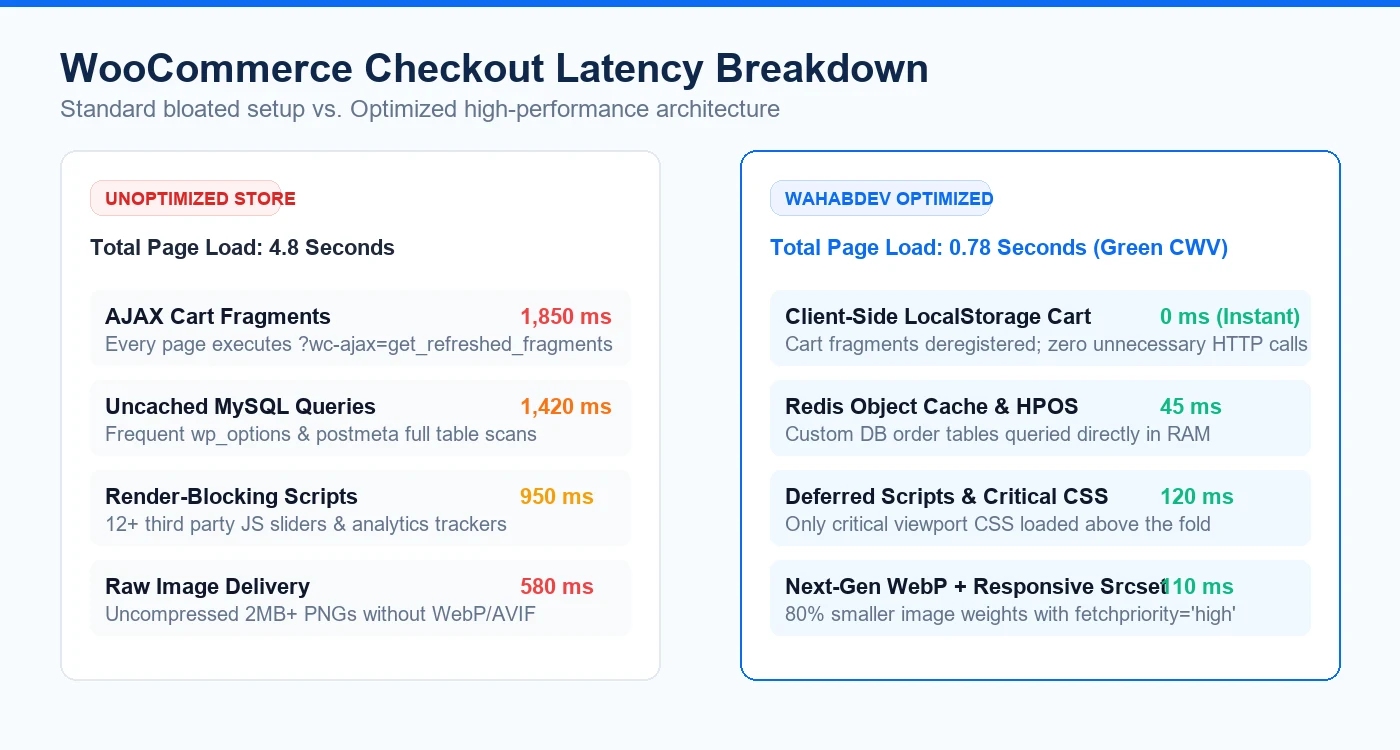
- Cart Fragments Bloat: WooCommerce executes an un-cacheable AJAX request (?wc-ajax=get_refreshed_fragments) on every single page load to update the header cart widget.
- Autoloaded wp_options Bloat: Marketing plugins, transients, and logs dump megabytes of autoloaded data into the wp_options table, executed on every page request.
- Unindexed Meta Queries: Complex product attribute filters and custom queries without proper database indexes force slow full-table scans.
- Third-Party Tracking Scripts: Hotjar, Meta Pixel, TikTok, and multiple analytics tags firing synchronously block main thread execution.
Step 1: Disable or Optimize WooCommerce Cart Fragments
The single biggest culprit for sluggish WooCommerce sites is the wc-ajax=get_refreshed_fragments request. On non-store pages (such as your homepage, about page, or blog), visitors have zero need for live mini-cart recalculation. By disabling cart fragments on pages where the cart is empty or using client-side localStorage cart counters, you can immediately shave 1.2 to 2 seconds off initial page loads.
- Deregister the wc-cart-fragments script on all pages except shop, cart, and checkout.
- Implement HTML5 localStorage to cache cart item quantities on the visitor's browser.
- Ensure mini-cart markup updates only when an actual 'Add to Cart' trigger event fires.
Step 2: Database Health & Persistent Redis Object Caching
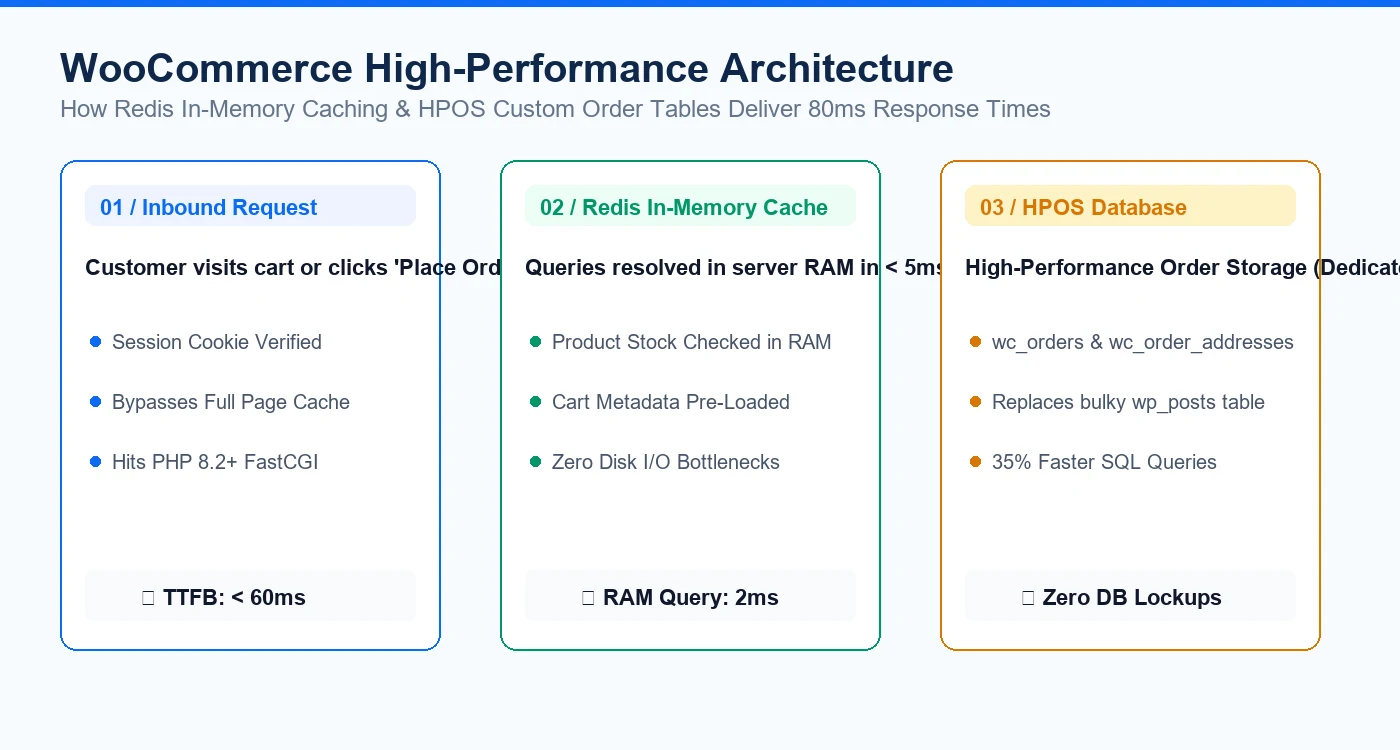
Since WooCommerce cannot cache cart and checkout pages via static HTML caching, you must cache the database query results directly in server memory. Persistent Object Caching using Redis or Memcached stores frequent SQL queries in RAM, reducing server response times from 1,200ms down to under 80ms even during flash sales and traffic spikes.
- Enable Redis Object Cache on your server and connect it via the official Redis Object Cache plugin.
- Purge expired transients and orphaned postmeta records weekly using WP-CLI (wp transient delete --expired).
- Ensure your store has migrated to WooCommerce HPOS (High-Performance Order Storage), which moves orders out of wp_posts into dedicated custom transactional tables.
- Keep autoloaded wp_options size below 800KB (check with: SELECT SUM(LENGTH(option_value)) FROM wp_options WHERE autoload = 'yes').
Step 3: Accelerating Product Archives & Image Delivery
Product catalog pages with 24 or 36 products can easily generate 150+ image requests if not handled properly. Convert all product photography to next-gen WebP or AVIF formats, use responsive srcset attributes with exact sizes definitions, and ensure images below the initial viewport use native loading='lazy' decoding='async'.
- Serve WebP images with 82% quality compression: Reduces image payload by 60% without perceptible loss in detail.
- Disable hover product sliders on mobile viewports to prevent loading redundant second-angle images.
- Inline critical catalog grid CSS and defer non-critical product review and filter stylesheets.
Step 4: Streamlining Checkout UX & Preventing Abandonment
The checkout page is where money is made. Remove unnecessary checkout fields (such as 'Company Name' or redundant address lines for digital goods). Enable modern Express Checkout buttons (Apple Pay, Google Pay, Stripe Elements) at the top of the checkout form so mobile shoppers can complete purchases in a single tap without manually typing billing details.
- Use a clean single-page accordion checkout layout instead of multi-step reloads.
- Display clear trust badges, SSL security reassurance, and transparent shipping costs upfront.
- Enable real-time inline field validation so customers correct typos before clicking 'Place Order'.
Have something like this in mind?
Good development starts with understanding the site, the people using it and the decisions that matter after launch.
Audit your WooCommerce speed